
Blog > Sage 50 Customer Payment Portal: Setup and Features Guide
Sage 50 Customer Payment Portal: Setup and Features Guide

If you’re managing accounts receivable for a business running on Sage 50, you already know how much time gets spent chasing down payments. Customers call to ask about invoices, your AR team manually records checks, and by the time everything reconciles, hours have quietly disappeared from the workday. A customer payment portal changes that dynamic in a real, practical way, and this guide walks you through everything you need to know to get one up and running inside your Sage system.
What a Customer Payment Portal Actually Does
At its core, a customer payment portal is a self-service hub where your customers can log in, see what they owe, and pay it, without ever picking up the phone or sending an email to your AR department.

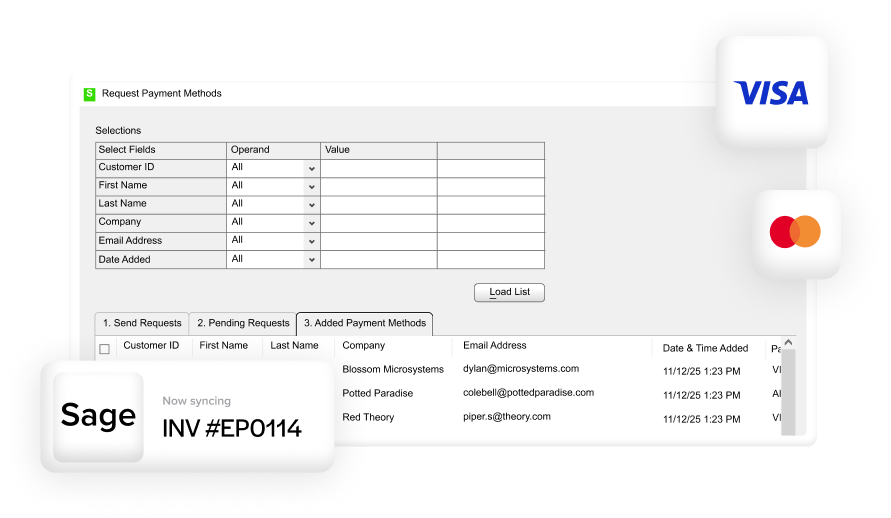
This is different from a generic payment link. A simple link can take a customer to a checkout page, but it has no real connection to your accounting software. A true Sage 50 customer portal syncs directly with your Sage 50 software, meaning every payment made through the portal automatically updates the correct invoice, posts to the right general ledger account, and reflects in your books in real time.
That distinction matters more than it might seem upfront. Without a native connection to your Sage system, someone still has to manually match incoming payments to open invoices. That manual step is where errors creep in, and time gets wasted.
Features Worth Paying Attention To
Not every online payment portal is built the same way, so it’s worth knowing which features actually move the needle for B2B operations.
Invoice visibility is the starting point. Customers should be able to see all of their open invoices, payment history, and any aging balances in one place. If they have to call your team to find out what they owe, the portal isn’t doing its job.
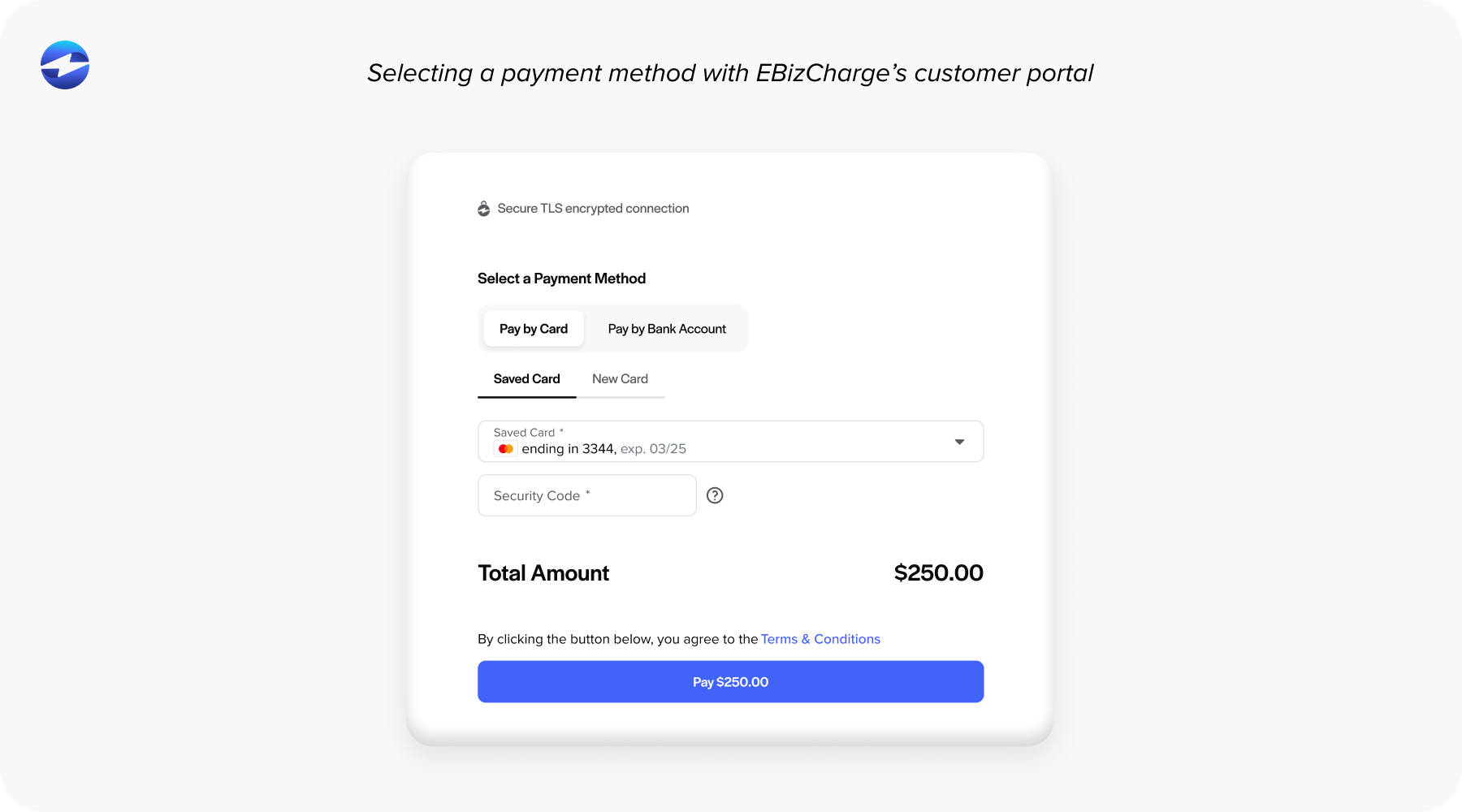
Multiple payment methods are equally important. Your customers pay differently. Some prefer ACH because it keeps their cash flow predictable. Others default to credit cards. A solid payment processing solution should support both, along with eCheck, so you’re not turning away a payment because of format.
Autopay and recurring billing are features that tend to get underestimated until you’ve actually used them. When a customer can set up automatic payments tied to their invoices, your DSO drops, and your AR team stops spending time on follow-up calls for repeat accounts.
Partial payments give customers flexibility when a dispute or credit situation is in play. Rigid all-or-nothing payment requirements slow cash collection. Partial payment support keeps money moving even when a line-item question is still being sorted out.
PCI-compliant card vaulting allows customers to securely store a payment method, so they don’t have to re-enter card or bank account details every time they log in. It also takes tokenized payment data off your plate, which is a meaningful security and compliance benefit.
Real-time Sage 50 integration is the feature that ties everything together. When a payment hits the portal, it should be posted to Sage 50 automatically. No manual entry. No reconciliation headaches at month’s end.
How to Set Up a Payment Portal for Sage 50
For AR managers, controllers, and billing teams navigating this process, setup doesn’t have to be complicated, as long as you choose the right payment processor from the start.
Step 1: Choose a payment processor built for Sage 50.
This is the most important decision in the whole process. A native Sage 50 integration means the payment solution was built to work inside the Sage environment, not retrofitted to it. Before committing to a provider, confirm that it supports your specific version of Sage 50, offers real-time data sync, and provides direct support for GL account mapping.
Step 2: Connect the integration.
Once you’ve chosen your payment processing solution, you’ll install the integration and link it to your Sage 50 software. This typically involves authenticating your merchant account, linking it to your Sage company file, and mapping payment fields to the correct GL accounts. Most integrations walk you through this with a configuration wizard.
Step 3: Configure the customer portal settings.
Here’s where you decide how the portal works for your customers. You’ll set up access, whether that’s individual customer logins or secure invoice-specific links, and determine which invoices are visible. You can often configure settings by customer group, which is useful if some accounts have special billing arrangements.
You’ll also decide whether to allow partial payments, set transaction limits if needed, and configure approval rules for larger transactions.

Step 4: Customize the portal to fit your brand.
A portal that looks like your company builds trust with customers. Most platforms let you add your logo, apply brand colors, and set a custom subdomain, so the experience feels like an extension of your business rather than a third-party tool.
Step 5: Enable your payment methods and surcharging.
Activate the payment methods you want to accept, such as credit card, ACH, and eCheck. If your business passes credit card processing fees to customers, this is also the stage where you configure surcharging. Getting surcharging set up correctly from day one avoids compliance issues and ensures fees are applied consistently.
Step 6: Test before you go live.
Send a test invoice to an internal account, walk through the full customer experience, and verify that the payment syncs correctly back into Sage 50. Check the GL posting, confirm the invoice marks as paid, and review the transaction record. Testing won’t take long. Catching an error after customers have already used the portal takes much longer.
Step 7: Communicate the portal to your customers.
The rollout matters. Send a clear email to your customer base explaining that you’ve launched an online payment portal, how to access it, and what they can do with it. A simple FAQ covering how to log in, how to save a payment method, and who to contact for help goes a long way toward adoption.
What This Does for Your AR Team
The operational impact of a well-configured Sage integration is straightforward. DSO goes down because customers can pay on their own schedule without waiting for a callback. Your AR team stops fielding “can you tell me what I owe?” calls because the answer is already in the portal. Manual payment entry disappears from the workflow. And month-end reconciliation becomes a review process rather than a data-entry marathon.
For finance leadership, better cash flow visibility is the headline benefit. When payments are posted in real time directly from the portal into the Sage system, your AR aging report actually reflects reality at any given moment.
Mistakes to Avoid During Setup
A few common missteps are worth calling out before you get started.
Choosing a payment processor that isn’t built specifically for Sage 50 is the most consequential mistake. Generic processors require manual workarounds that undermine the entire point of having an integrated system.
Skipping surcharge configuration when your business is eligible means you’re absorbing processing costs that could legitimately be passed on. It’s worth setting up correctly from the beginning.
Failing to test general ledger mapping before going live can result in payments posting to the wrong accounts. Always confirm the mapping during setup, not after a month of transactions.
Finally, not communicating the portal launch to customers means low adoption and the same old payment friction you were trying to eliminate. Onboarding your customers is just as important as configuring the software.
How EBizCharge Handles This for Sage 50 Users
The EBizCharge payment solution is built as a native Sage 50 integration, meaning it operates inside the Sage 50 environment rather than alongside it. Payments made through the EBizCharge customer portal post directly to Sage 50 in real time, invoices update automatically, and your AR team doesn’t have to touch anything.
The portal supports credit card, ACH, and eCheck payments, includes autopay functionality, allows partial payments, and gives customers a branded, professional interface to manage their invoices. Surcharging is built in for businesses that want to offset card processing costs, and all payment data is tokenized to keep you out of PCI scope.
If your team is spending too much time on manual payment processes inside Sage 50, a purpose-built payment portal is the most direct fix.