

How to Accept Credit Card Payments in QuickBooks

EBizCharge is the #1 customer-rated payment solution for QuickBooks.

Accepting credit card payments is a great way to increase your cash flow. Not every customer carries cash and checks take much longer to process than credit cards. If your company uses QuickBooks to record payments there are two different ways to accept credit card payments. You can use the native QuickBooks software, or you can lower your QuickBooks credit card processing fees by using a QuickBooks credit card integration like EBizCharge.
A QuickBooks credit card integration passes more information through the point of sale. Line item details and invoice information already stored in QuickBooks are automatically passed to a PCI-compliant payment gateway. This process helps qualify your cards for reduced interchange rates and provides the lowest QuickBooks credit card processing fees for your business.
Whether you’re accepting payments for the first time or just need a quick refresher, here’s how to accept credit card payments in QuickBooks using either the native software or a credit card processing integration with QuickBooks.
How to accept credit card payments in QuickBooks Online
First, here’s how to accept credit card payments in QuickBooks using the native QuickBooks software. You can enter a credit card payment from the Sales Receipt, Receive Payment, or Invoice pages.
To enter a credit card payment from the Sales Receipt or Receive Payment page:
- Click on either Create (+)>Receive Payment OR Create (+)>Sales Receipt. Create (+) > Receive Payment if you receive payment for a sale that you already entered on an invoice. Create (+) > Sales Receipt if you record a sale and receive immediate payment.
- Complete the form. Select a credit card for Payment method and click Enter credit card details.
- Either enter the credit card information or swipe the credit card. Enter the credit card information and click OK to save. Or, swipe the credit card by clicking Swipe card and then swiping the card through the reader.
- Save and process. Click Save and close to save the transaction and process the payment.
To enter a credit card payment from the Invoice page:
If a customer gives you a partial payment and you issue an invoice for the balance, you can then process a credit card payment from the Invoice page.
In order to do this, you must turn on deposits:
- Click the Gear icon > Company Settings (or Account and Settings).
- Click Sales, then click the pencil icon next to Sales form content and select Deposit.
To continue, you must enter the credit card information manually:
- Click Create (+) > Invoice.
- Fill in the top section of the form.
- In the Deposit field, enter the deposit amount.
- From the Payment method dropdown list, select the credit card type.
- Click Enter credit card details to enter or change the credit card information.
- Select Process credit card.
- Click Save and close.
How to accept credit card payments in QuickBooks Desktop
QuickBooks Desktop processes credit card payments through two main paths: creating a sales receipt for in-person or over-the-phone payments, or applying a payment to an existing open invoice.
To accept a credit card payment via Sales Receipt:
- Go to Customers and select Create Sales Receipts
- Select the customer from the Customer: Job field
- Add the products or services purchased and fill out the rest of the form
- Select Credit/Debit card as the payment method
- In the pop-up window, enter the credit card details and select Done — or if you have a card reader connected, select Insert/Swipe Card, swipe the card, then select Process Payment
- Select Save & Close
To accept a credit card payment against an open invoice:
- Go to Customers and select Receive Payments
- Select the customer from the Received From field
- In the transactions section, select the invoice you want to apply the payment to
- Select Credit/Debit card as the payment method
- Enter the credit card details in the pop-up window and select Done or swipe using a connected card reader and select Process Payment
- Select Save & Close
QuickBooks Desktop automatically matches the payment to the invoice and updates the balance due once the transaction is processed.
How to accept credit card payments in a QuickBooks integration
Here’s how to receive the lowest QuickBooks credit card processing fees by using a QuickBooks credit card integration, such as EBizCharge, to accept credit card payments in QuickBooks.
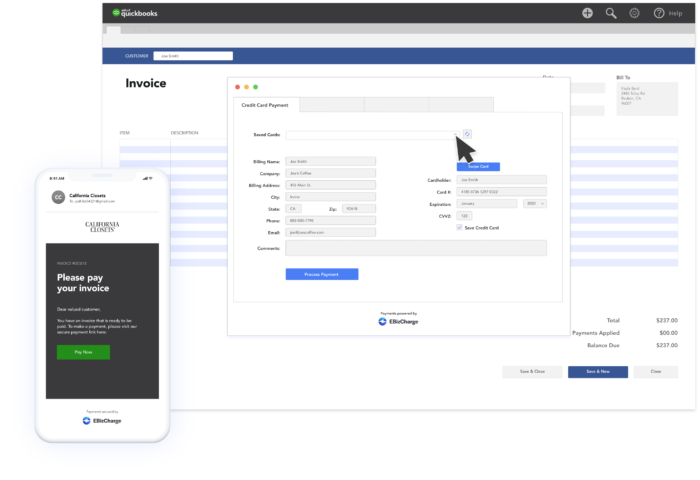
With a credit card integration, you can enter a credit card in QuickBooks at the stages listed above, plus Sales Orders, Credits, and Refunds.
To enter a credit card payment from the Credits and Refunds page:
- Create a credit memo.
- Click Save & Close.
- Select Give a Refund.
- Go to “Issue this refund via” and choose the appropriate credit card.
- Click OK. (Make sure the “Process credit card refund when saving” box remains unchecked.)
- Enter cardholder information. You can select a saved card or enter a new card.
- Select Process Payment. (After the credit has been processed, you can print and email receipts.)
- Click Done.
Process Payment will process the negative payment for the amount shown. An easy way to tell if it’s a credit is by checking the reference number. Since there are far fewer credits applied, the reference number will almost always be a much smaller number than when doing a credit card charge.
To enter a credit card payment from the Sales Order page:
- Click Sales Order.
- Complete the form.
- Click Save & Close.
- Enter cardholder information. You can select a saved card or enter a new card. (You can save a new card on file for future use.)
- Select Process Payment. (After the payment is processed, you can print and email receipts.)
- Click Done.
Lower Your QuickBooks Credit Card Processing Fees
Using a QuickBooks credit card integration is a great way to simplify payment acceptance and streamline your accounting process.
A credit card integration can significantly reduce QuickBooks credit card processing fees and make it easy for you and your accounting team to process credit card payments within your QuickBooks system. A credit card integration also gives you the freedom to enter credit card payments at more stages in QuickBooks than the native QuickBooks software.
A QuickBooks credit card integration also gives your team the ability to process payments at more stages, qualify for lower interchange rates, and keep your books accurate without extra manual work. For businesses that have scaled beyond QuickBooks into a full ERP like NetSuite, a NetSuite payment gateway offers the same streamlined experience, letting finance teams accept and reconcile credit card payments directly within their system.